Note
The screenshots on this page show the panel in Spanish, because they are captured once, from the Spanish interface. Your panel shows the same screens with the English labels used in this text — the buttons are in the same place.
Install WordPress
What you get: WordPress installed and ready to log in to, without downloading anything or touching the database by hand.
The steps are the same for the other applications in the catalogue (WooCommerce, Joomla, PrestaShop and the rest): the only thing that changes is which one you pick in the first step.
Before you start
You need the site already created (Create a website).
WordPress needs PHP 7.4 or later. If your site is below that, change it first: Change your PHP version.
It helps, though it isn’t required, if the domain already points here (Point your domain here). If it doesn’t, you’ll have to go back and fix the site address inside WordPress later on.
Steps
In the Hosting Panel, go to the Apps catalogue.
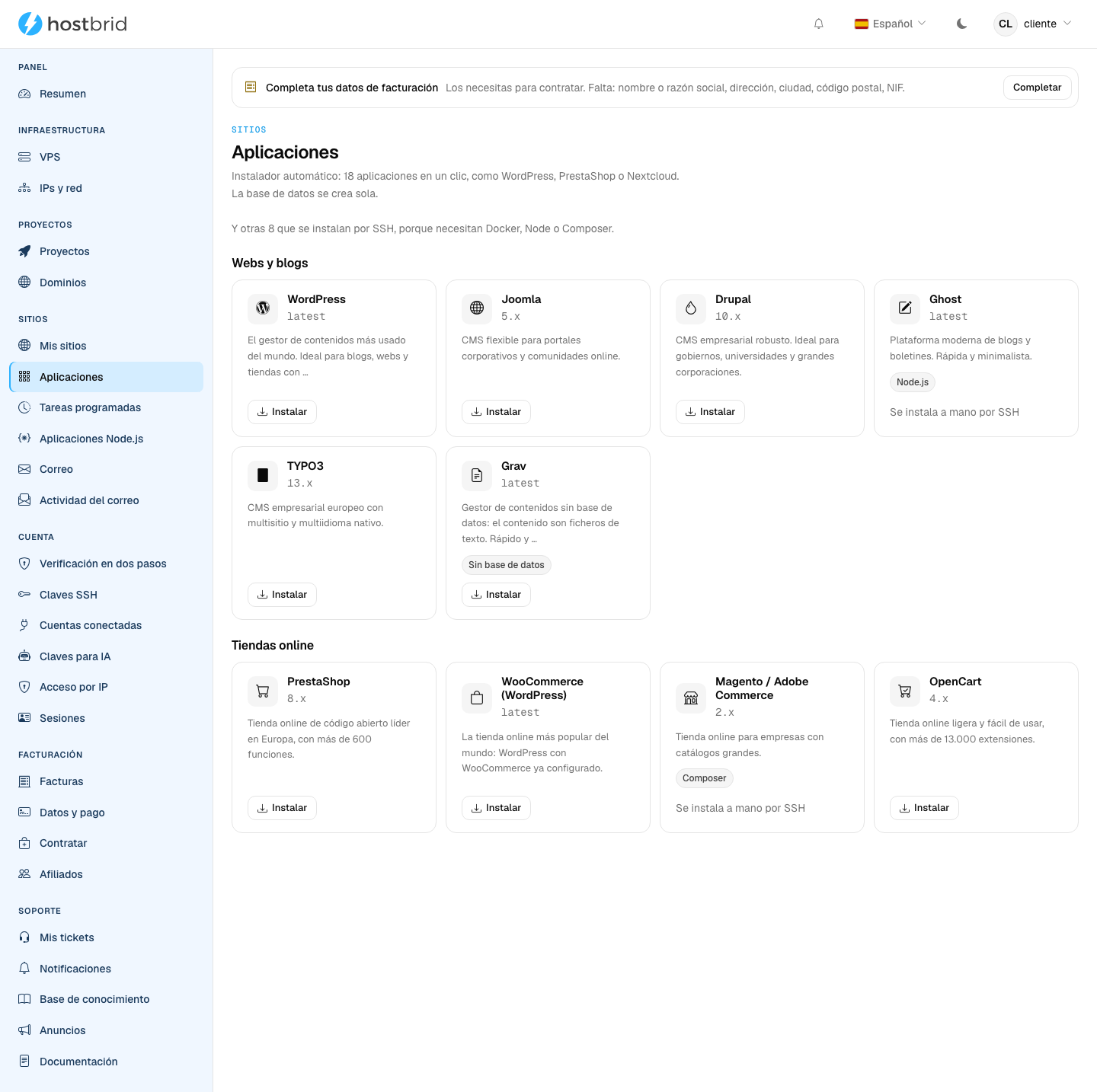
Find WordPress and click Install.
If the button says “Create a site first”, it means you don’t have a site to install it on yet.
Under On which site, choose your website.
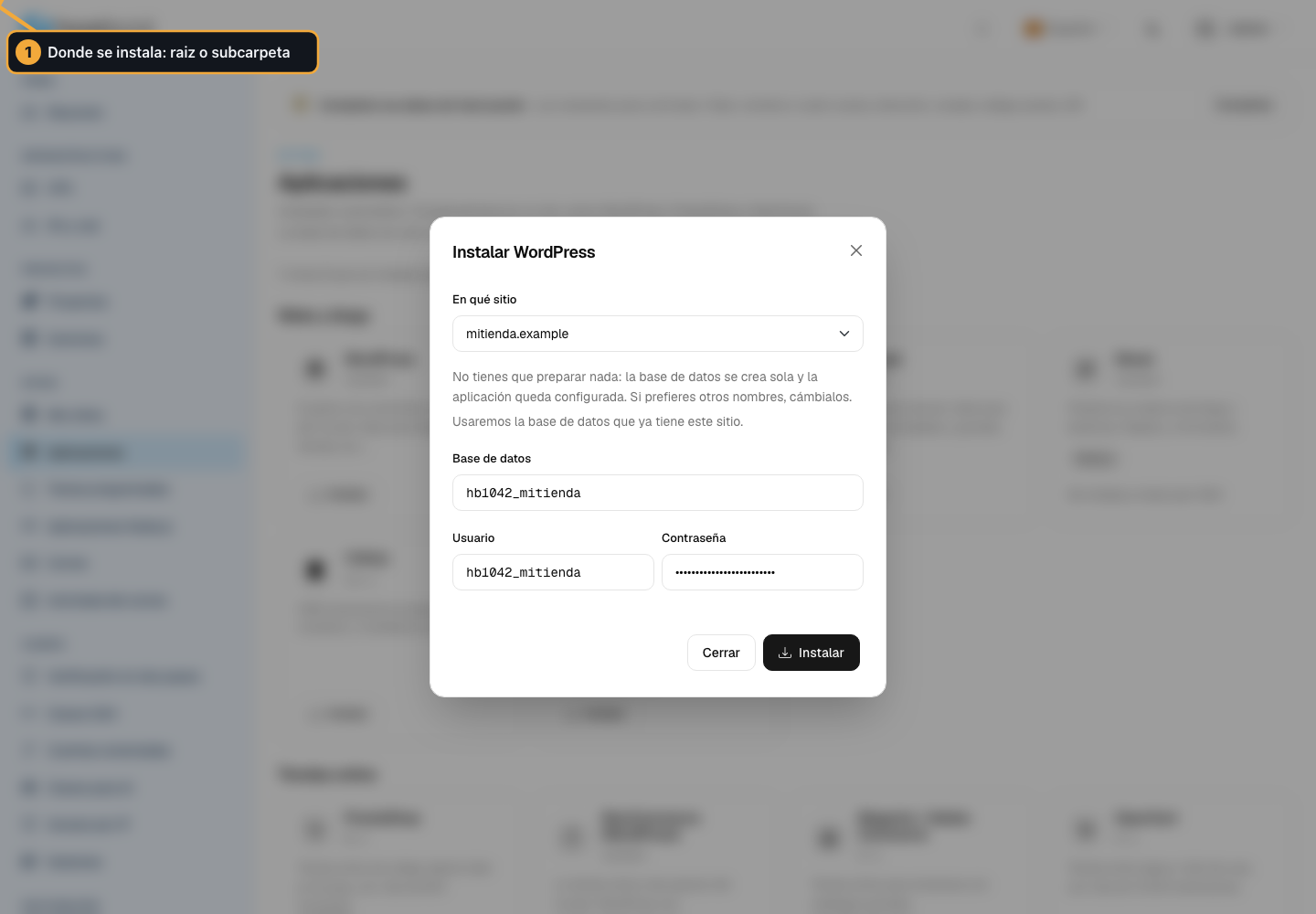
The Database details fill in on their own with those of that website.
Leave them as they are. You only touch them if you want to use a different database. If you clear them, WordPress will ask you for them later in its own wizard.
Click Install and wait.
The button changes to Installing…. WordPress is downloaded, unpacked and
wp-config.phpis left written with the database details.When it finishes, click Open the admin area.
That takes you to WordPress’s own wizard, where you choose the site title and create your administrator user. WordPress handles that part, not us.
How you know it worked
The message “WordPress installed!” appears with the Open the admin area button, and when you go to your domain you now see WordPress instead of the blank page.
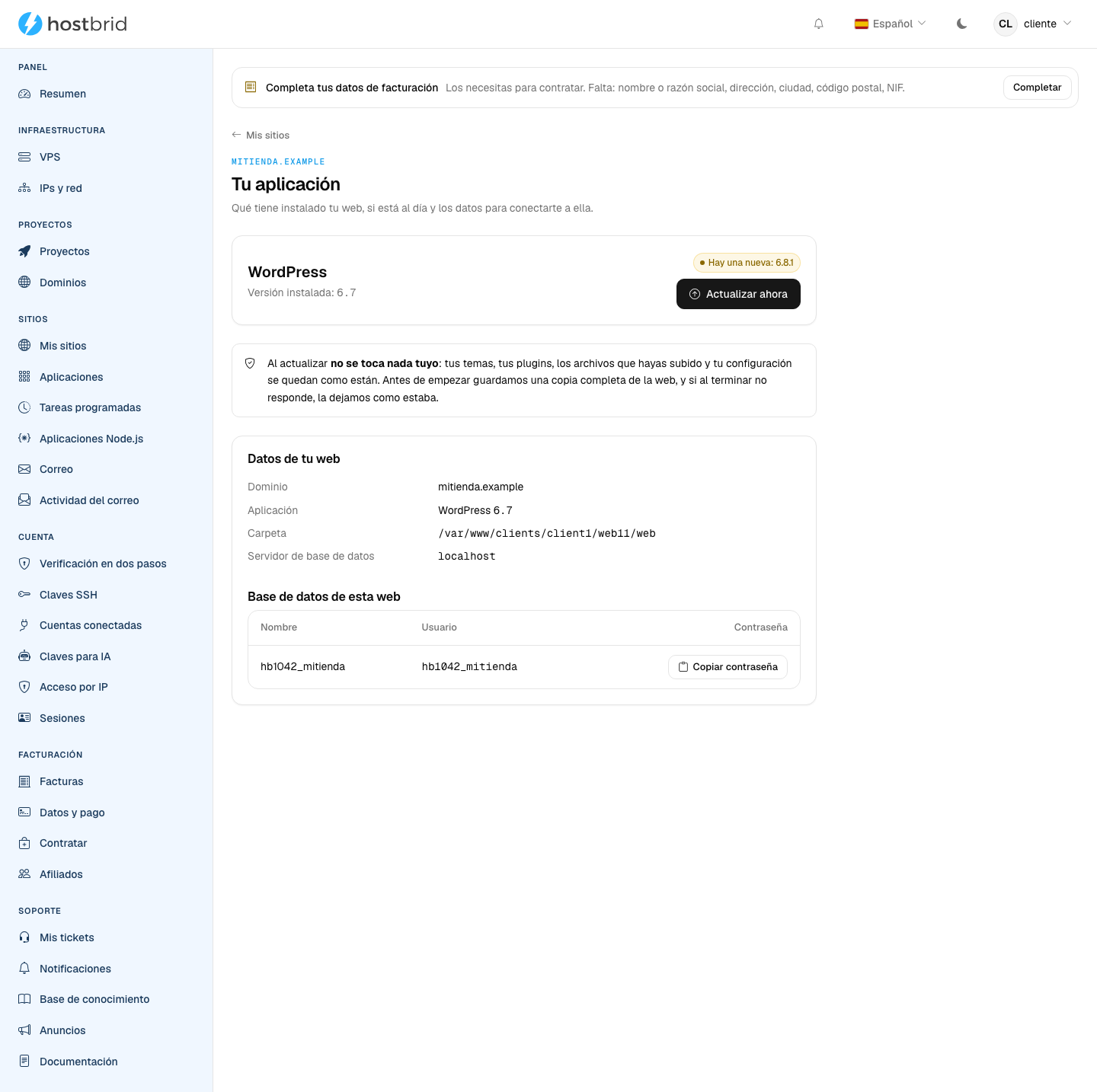
On top of that, in your list of websites the Application button for that site stops being empty: go in there and you’ll see which application it has, which version, and whether there’s an update.
Keeping it up to date
Under Application you’ll see one of three things:
Up to date — nothing to do.
Update now — there’s a new version. Click it and it updates.
We couldn’t check it — we couldn’t read the version. You can use Update anyway, but make a backup first.
If you installed the application yourself, over FTP, this screen won’t offer to update it: we don’t know what’s in there, and updating blind could break your website.
Common problems
- WordPress says it can’t connect to the database
Go to Application for that site: there you have the right name, user and password for that website’s database, with a copy button. Paste them into the WordPress wizard.
- The installation fails and mentions the PHP version
Your site is on a version below the one the application asks for. Change it in Change your PHP version and install again.
- I go to the domain and still see the old page
Either the domain doesn’t point here yet (Point your domain here), or it’s the browser cache. Try it in a private window.