Note
The screenshots on this page show the panel in Spanish, because they are captured once, from the Spanish interface. Your panel shows the same screens with the English labels used in this text — the buttons are in the same place.
Point your domain here
What you get: your domain stops loading the old site and starts loading the one you have at Hostbrid, with the certificate padlock in place.
This guide is for a domain you already have registered somewhere else. You do not have to transfer it to Hostbrid: you just have to tell it where to point.
There are two ways to do it. The wizard tells you which one applies to you.
Steps
In the Hosting Panel, find your site in the list and click DNS.

Read the box at the top before you change anything. It tells you where you stand:
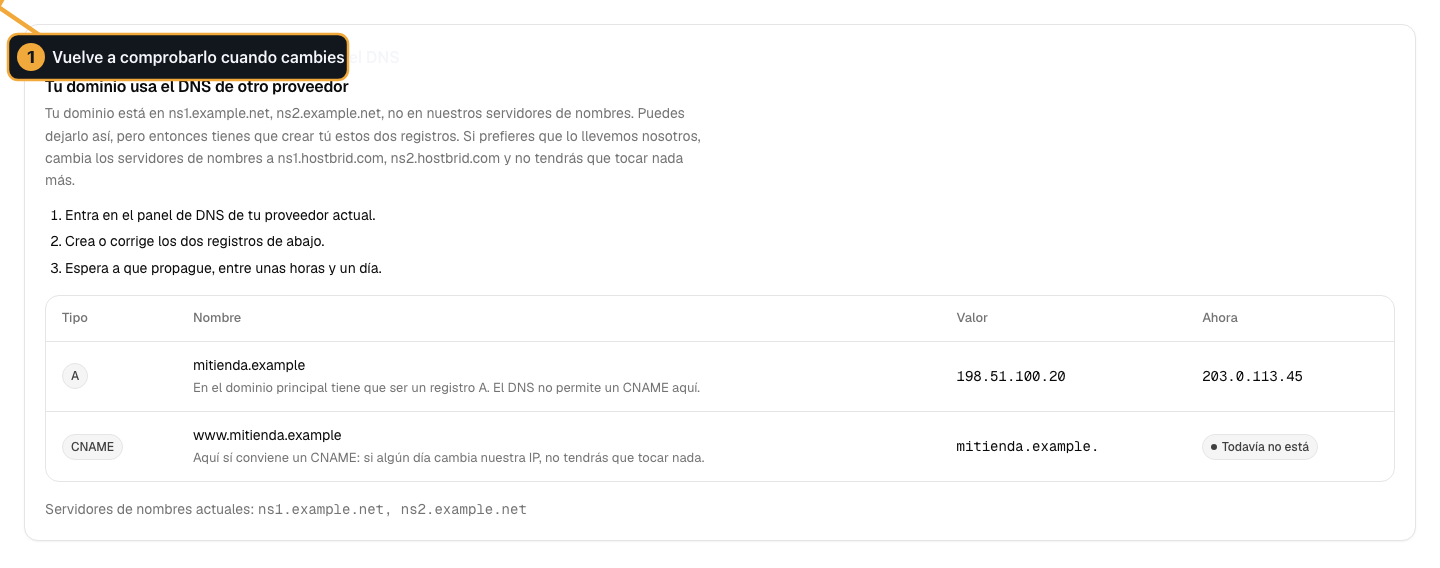
What it says
What it means
The domain is not registered yet
Nobody owns it. Register it first.
It is registered but not configured
It is yours, but it does not point anywhere. Go to Option A.
Your domain uses another provider’s DNS
You manage it somewhere else. Choose Option A or Option B.
You have already delegated the domain to us: it only has to propagate
It is already done. All you have to do is wait.
All good / Your domain already points here
Finished, there is nothing for you to do.
We could not check the domain
We could not look it up. Try again in a few minutes.
Choose one of the two options.
Option A: let us handle it (recommended)
Two steps, and after that you never have to touch anything again. We keep the records up to date for you.
In the wizard, copy the two name servers with the Copy button: NS1 and NS2.
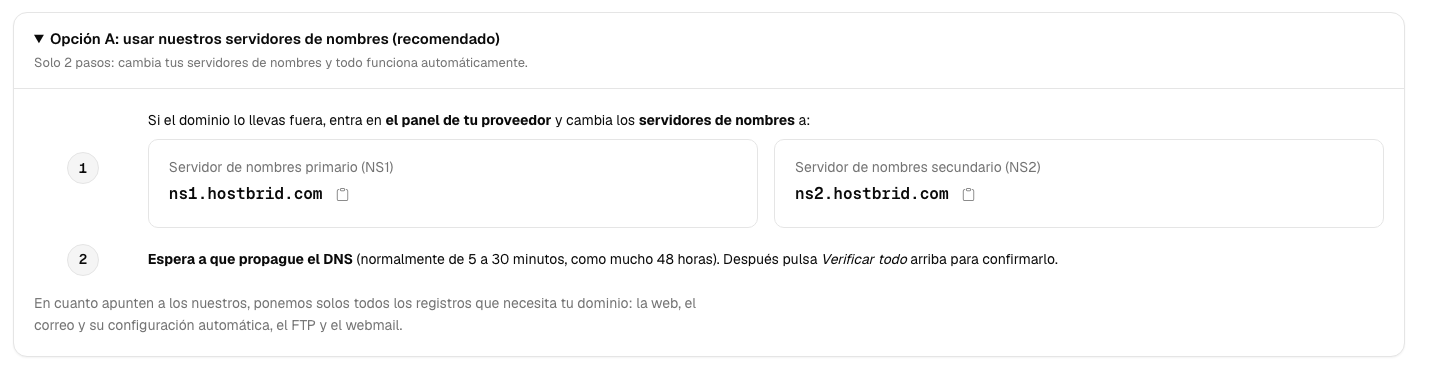
Go to wherever the domain is registered and replace its name servers with those two.
This is not the same as creating records: it is the setting usually called nameservers, DNS servers or custom DNS.
Warning
When you change the name servers, everything that hangs off that domain moves over to Hostbrid. If you had email with another provider, tell us first: those records have to be copied over or email stops arriving.
Option B: stay with your DNS provider
If you would rather keep managing DNS where it is now (Cloudflare, GoDaddy, IONOS…), you have to copy the records by hand.
In the wizard, scroll down to the Your domain’s records table.
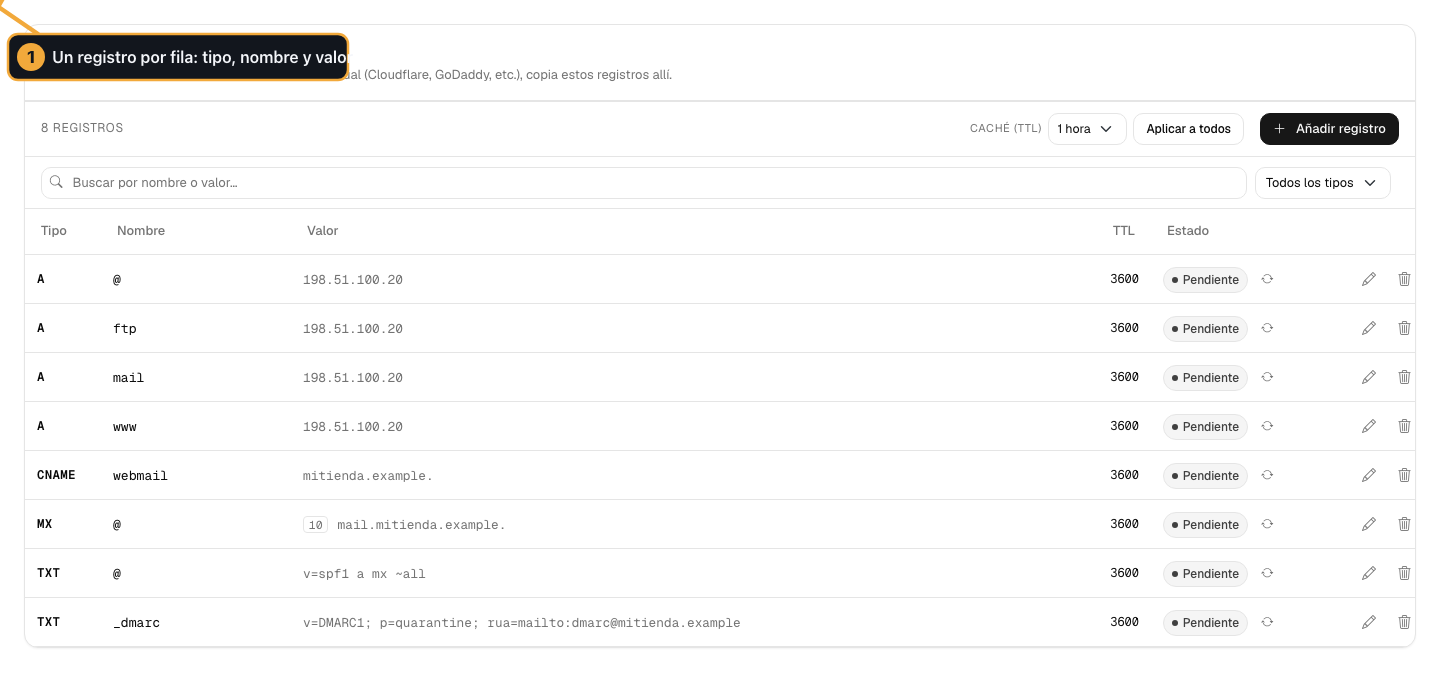
Create every row of the table at your provider, keeping Type, Name and Value exactly as they are. Use the Copy value button so you do not mistype anything.
The ones you cannot leave out are the root record (
@), thewwwone and the email ones. The wizard shows you the ones that apply to your domain.Leave the TTL as we give it to you. If you are going to make more changes over the next few days, set it low (300 seconds) and raise it afterwards.
Check that it is done
Go back to the wizard and click Check everything.
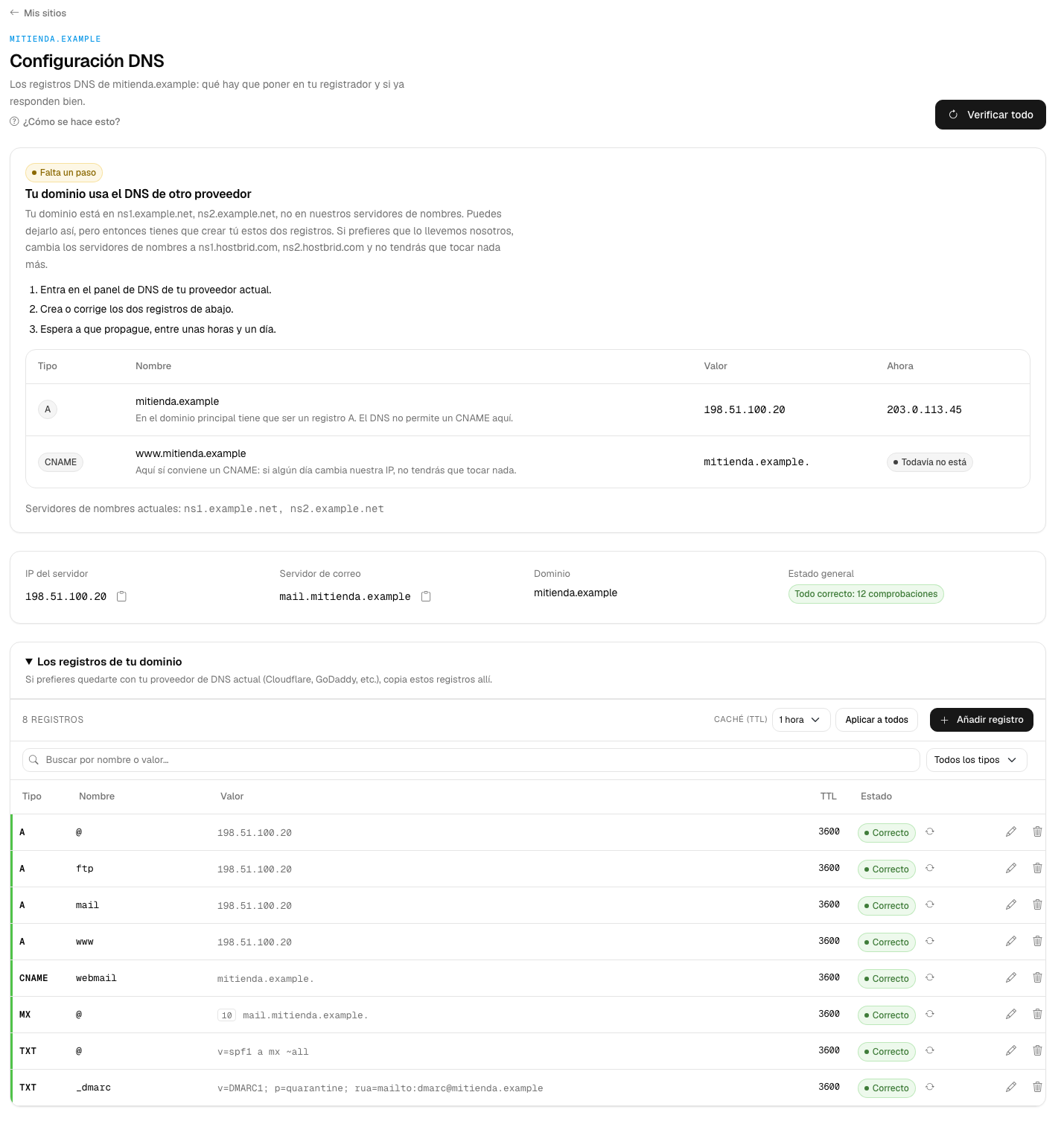
How you know it worked
Overall status stops saying “Not checked yet” and the rows of the table turn green.
The diagnosis at the top changes to All good.
The “No certificate” warning disappears from your site list: the certificate is issued automatically as soon as the domain points here.
Your domain opens your site, with the padlock.
How long it takes
Minutes, normally. It can take 24-48 hours if your provider had a high TTL set, and there is nothing we can do about that: it is the rest of the internet doing the waiting, not us.
In the meantime it is normal for the site to load from one place and not from another.
Common problems
- It still says “No certificate” hours later
The certificate needs the domain to point here already. Click Check everything first; if everything is green and there is still no certificate, your site list has the Check and Request it again buttons.
- I changed the name servers and now my email does not arrive
Your previous provider was handling email and its records were not copied over. Open a ticket with the provider’s name: it is quick to fix.
- The old site still shows up
It is almost always your browser’s cache or your ISP’s. Try it on your phone over mobile data, with wifi off.