Note
The screenshots on this page show the panel in Spanish, because they are captured once, from the Spanish interface. Your panel shows the same screens with the English labels used in this text — the buttons are in the same place.
Change your PHP version
What you get: your website running the PHP version your application asks for, without opening a ticket.
Every application has its own requirements. WordPress needs 7.4 or later; current versions of Drupal, TYPO3, DokuWiki and Nextcloud won’t start below 8.2; ownCloud, on the other hand, doesn’t go above 8.0. The version is chosen per site, so you can have one website on 8.3 and another on 8.0 in the same account.
Steps
In the Hosting Panel, on your site’s row, click PHP.

In the list of versions, look for the one with the Current tag. That is the one you have now.
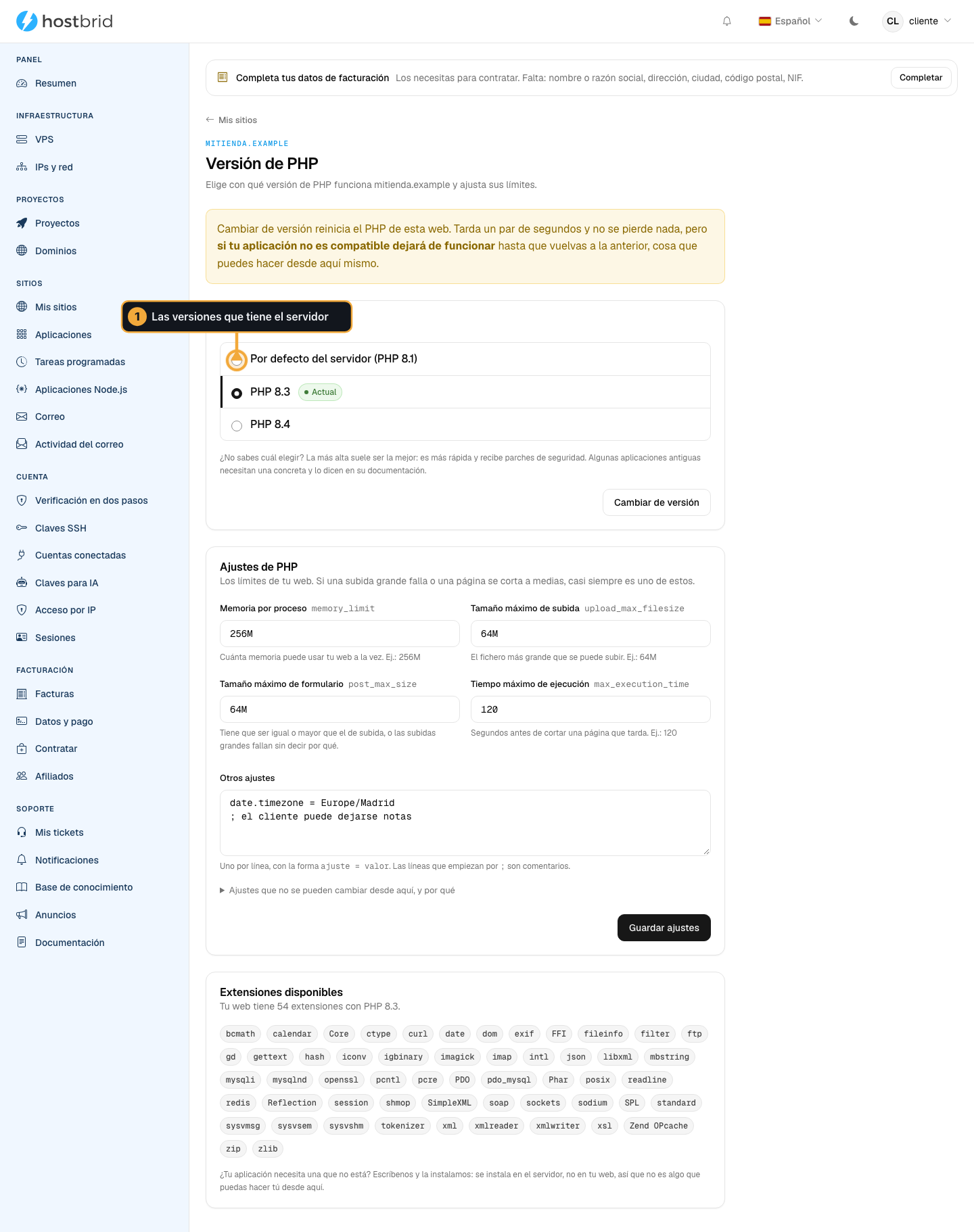
Choose the version you want and click Apply.
The change is not cosmetic: your website’s configuration is rewritten and the server is reloaded. It takes a few seconds.
How you know it worked
A green notice appears:
PHP version changed. Your website already uses the new one; if something stops working, go back to the previous one right here. From now on we won’t change it when installing anything.
And the Current tag has moved to the version you chose.
Open your website and check. If something breaks, come back to this screen and set the previous version: undoing it is just as quick.
Important
Once you choose a version yourself, we stop touching it. Before, installing an application that needed a newer PHP would bump it behind your back; from now on we’ll tell you and you decide. It’s your website.
Which extensions you have
At the bottom of the same screen, under Available extensions, you have the list of extensions for the version running right now.
That is where to look when an application asks for something like ext-intl or ext-gd and you want to know whether it will work before installing it.
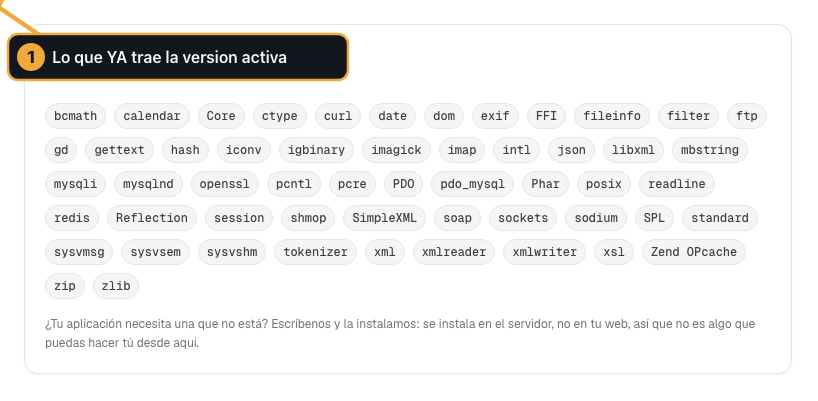
If one is missing, open a ticket: extensions are installed on the server, not from your panel.
Common problems
- “We can’t check the versions available on the server right now”
It’s not your fault. Come back in a few minutes. If it’s still the same after half an hour, open a ticket.
- “It could not be changed”
The notice carries the reason after it. Copy it word for word into a ticket: with that text we know what happened.
- I changed version and my website gives a 500 error
That’s to be expected if the application doesn’t support that version. Go back to the previous one from this very screen; it’s fixed straight away.
- I can’t see the PHP button
Your user is set to read only within the organisation. Ask whoever administers it to change your role.
Next step
If what you need isn’t a different version but more memory or larger uploads, see View and edit your PHP settings.