Note
The screenshots on this page show the panel in Spanish, because they are captured once, from the Spanish interface. Your panel shows the same screens with the English labels used in this text — the buttons are in the same place.
Projects: publish from your repository
What you get: you connect a git repository and, on every push, your site builds and publishes itself. With HTTPS, without touching anything and without uploading files over FTP.
This is what you want if your site is generated by a framework —Astro, Vite, exported Next, Hugo, Jekyll…— and you work with git. If yours is WordPress or PHP, that’s Create a website, not this.
Create your first project
In the menu, . The first time you’ll only see Connect a repository.
Under New project you choose where the code comes from:
From your git provider — connect GitHub, GitLab or Bitbucket and pick the repository. Each push to the production branch publishes a new version.
Or start with a template — we copy it to your git account, not to ours, and deploy it. The repository is yours from minute one. That is why you need to connect the provider first.
Then you choose a domain, and you can leave it for later: the free subdomain works from the very first deployment.
The first deployment
As soon as you connect, the build starts. The project screen shows the deployments, and clicking one shows its live log.
If it fails, the log is trimmed keeping the end, which is where the error is, and every known error comes with a More about this error link.
Note
You don’t have to get the settings right. We look at what is in the repository and detect the framework on our own. You can force it later in Settings.
Your domain
In each project’s Domains tab:
The free subdomain is always there and never expires.
Add a domain: buy it right there and it gets hooked up on its own, or point the one you already have.
You will see the stage it is at: Verifying DNS, Issuing certificate, Active. There is nothing to do in between: just wait.
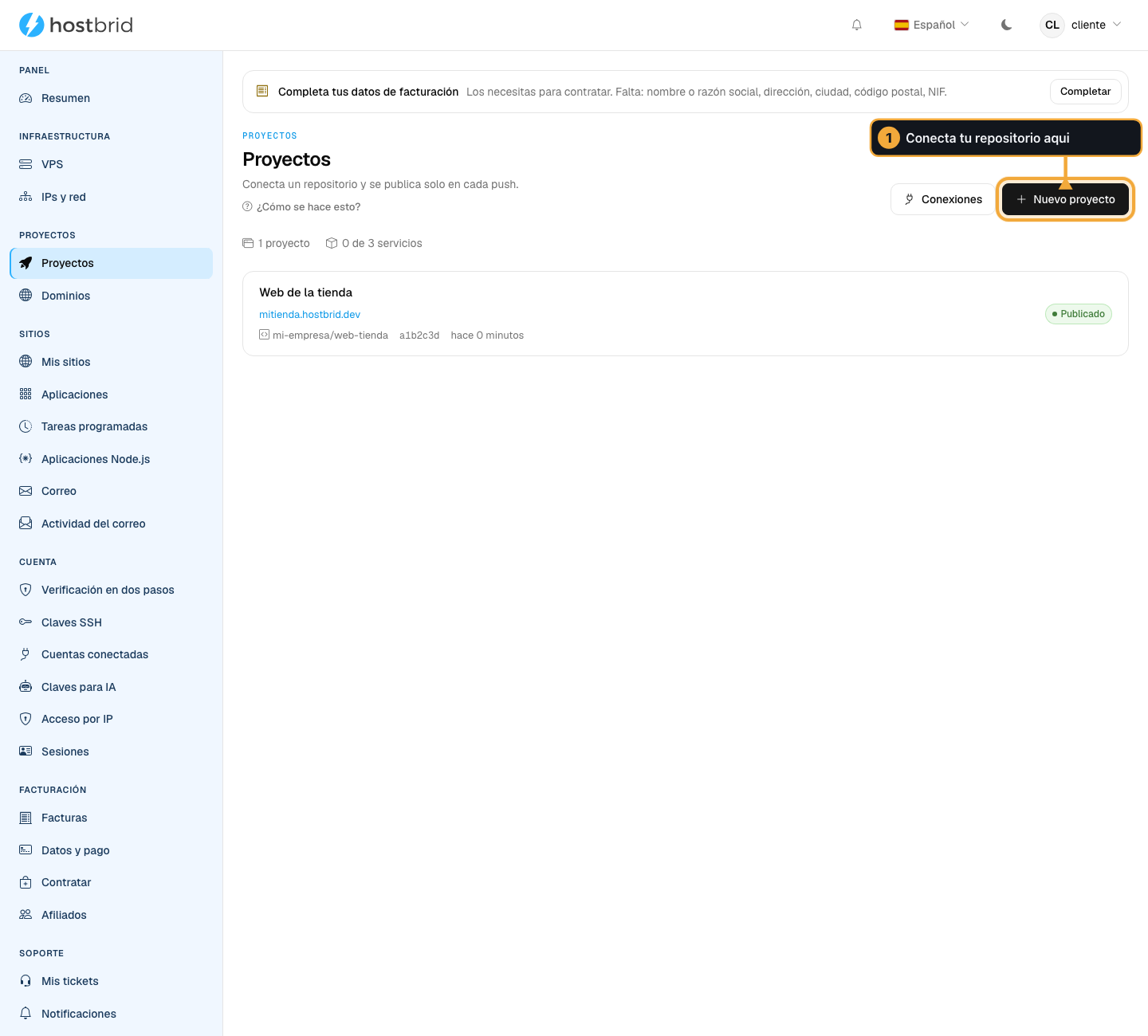
A project already published, with its repository, the commit and how long it took.
Change how it is built
In Settings:
Setting |
What it is for |
|---|---|
Framework |
Leave it on Detect automatically (recommended) unless it gets it wrong. |
Production branch |
Which branch publishes. The others publish nothing. |
Install command |
Usually |
Build command |
What generates the site. Usually |
Output directory |
Where it leaves the files. |
Repository subfolder |
If the project is not at the root (a monorepo). |
Going back
Every deployment is kept and can be promoted to production. When you do, the screen warns you: Production is pinned to an earlier deployment.
Warning
While it is pinned, a new push does not publish. That is on purpose: otherwise the next commit would undo your rollback without warning, leaving the site down. To go back to normal, promote the latest deployment.
Environment variables
Whatever your build needs. They are stored encrypted and are never shown once saved: they can be replaced, not read.
Common problems
- I pushed and nothing happened
Check the branch: only the production one publishes. And check that the connection with your git provider is still authorised.
- It builds fine but the site comes out blank
It is almost always the Output directory. Check where your framework leaves the files and set it in Settings.
- I want to use the domain I already have
Add it under Domains and point the DNS where it tells you. If you handle the DNS yourself, Your domain’s DNS explains the records.