Note
The screenshots on this page show the panel in Spanish, because they are captured once, from the Spanish interface. Your panel shows the same screens with the English labels used in this text — the buttons are in the same place.
Your DNS at another provider: what to add and how to write it there
What you get: your website and email with us while your DNS stays where it already is (Cloudflare, your registrar, another host), without changing the name servers. The panel knows where your DNS is and gives you the records written the way your provider asks for them, with their status right away.
Before you start
There are two ways to run your DNS, and both work:
With our name servers (
ns1.hostbrid.comandns2.hostbrid.com): we set everything up and you do not have to touch anything. It is the easiest way; Point your domain here explains it.With the provider you already use: you create a few records there yourself. That is what this guide explains.
Steps
For your website: in the Hosting Panel, on your site’s row, click DNS. If your domain uses another provider’s DNS, at the top you will see “DNS at …” with its name, a button to open its panel and where the records are inside it.
For email: open Email. For each domain with its DNS elsewhere there is a table with the email records.
Read “Before you start”: these are your provider’s pitfalls (for example, in Cloudflare email has to go with the grey cloud).
Create each record at your provider by copying the Name and the Value with their buttons. They are already written the way it wants them: with or without “@”, with or without the domain after it, with or without a trailing dot. If the name says “Leave it empty”, leave that field blank.
Click Check again. Each row says whether it is OK, Missing, Different value (and which one) or Two SPF records.
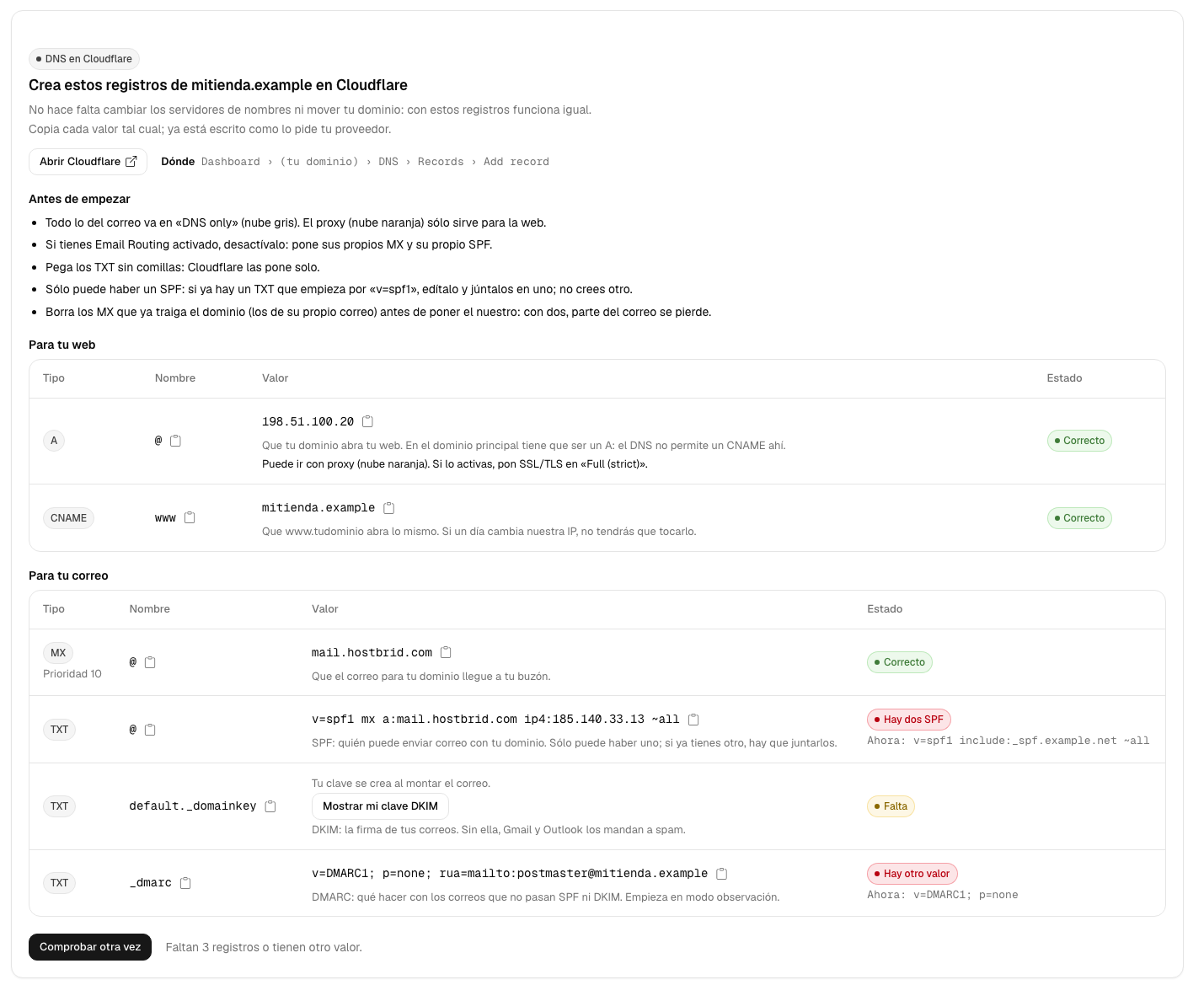
What you need
For your website, two records: an A on the main domain pointing to the server’s IP and a CNAME on www pointing to your domain. On the main domain it has to be an A: DNS does not allow a CNAME there.
For email, four: the MX pointing to mail.hostbrid.com, the SPF, the DKIM signature (the key is yours: the panel shows it with Show my DKIM key) and the DMARC. The exact values are in Email on your domain without moving your DNS.
If it is a subdomain (tienda.mitienda.example), the records are created in the mitienda.example zone and the name starts with the subdomain: the root is tienda and the www, www.tienda. The panel already gives them to you that way.
Optional records
Below the required ones, the panel shows two optional groups. Everything works without them; with them it is more convenient:
FTP, SSH and webmail on your domain:
ftp,sftpandsshareArecords to the server IP (so you can move one without touching the others) andwebmail(only if you have email here) is aCNAMEto your domain. They let you typeftp.yourdomain.comin FileZilla instead of an IP.ftp,sftpandsshcannot use the Cloudflare proxy: leave them on the grey cloud.Let email apps set themselves up:
autoconfigandautodiscover(A, only if the website is also here) and theSRVrecords_imaps._tcp,_submission._tcpand_submissions._tcp, which point to our mail servermail.hostbrid.com.
A missing optional record does not prevent the All set message.
What is already in your DNS and gets in the way
Even if you add ours correctly, there are things you already had that break the result. The panel looks for them and, when it finds one, tells you what to change in a box above the table:
CAA: if your domain has a CAA that does not authorise
letsencrypt.org, we cannot issue your website certificate and the browser will warn that it is not secure. Add0 issue "letsencrypt.org"without deleting the existing ones.AAAA (IPv6): our server does not use IPv6. If your domain has an AAAA, anyone connecting over IPv6 will see the old website. Delete it; there is no need to create another.
Cloudflare orange cloud: for the website it is fine and is shown as Correct, with proxy. It does not work for FTP, SFTP and SSH: switch them to DNS only. Webmail and autoconfiguration do work with the proxy.
CNAME on the main domain: it cannot coexist with the
MXor theTXT. Delete it and set theA.MX of another server: part of the email would not arrive. Keep only ours.
Two SPF records, or one that does not include us: the panel gives you the merged value to copy.
An A record to another place (parking page, registrar redirect): edit it instead of creating another.
The check is made on your domain’s name servers, not on a caching resolver: what you see is what is there. If that was not possible, the panel says so and uses a public resolver, which may take a while to reflect your changes.
How to write it at each provider
The same as the panel does, in case you want to have it at hand.
Cloudflare
Where:
Dashboard › (tu dominio) › DNS › Records › Add recordPanel: https://dash.cloudflare.com/
Main domain: “@”. Other names: only the front part (www, _dmarc).
Targets (CNAME and MX): no trailing dot, exactly as we give them to you.
Everything for mail goes as “DNS only” (grey cloud). The proxy (orange cloud) is only for the website.
If you have Email Routing turned on, turn it off: it adds its own MX records and its own SPF.
Paste the TXT values without quotes: Cloudflare adds them itself.
Their documentation: https://developers.cloudflare.com/dns/manage-dns-records/how-to/create-dns-records/
GoDaddy
Where:
Portafolio de dominios › (tu dominio) › DNS › Agregar nuevo registroMain domain: “@”. Other names: only the front part (www, _dmarc).
Targets (CNAME and MX): no trailing dot, exactly as we give them to you.
If the domain is parked or forwarded, the “@” A record points to GoDaddy: remove the forwarding and edit that A record, do not create another.
If you connected it to GoDaddy email, its MX records are added automatically: delete them before adding ours.
Their documentation: https://www.godaddy.com/help/add-a-txt-record-19232
IONOS
Where:
Dominios y SSL › (rueda dentada del dominio) › DNS › Añadir registroMain domain: “@”. Other names: only the front part (www, _dmarc).
Targets (CNAME and MX): no trailing dot, exactly as we give them to you.
It comes with default records: an A record to its product and MX records to mx00/mx01.ionos.com. Edit or delete them.
If an MX record “belongs to a service” of IONOS, turn that service off first or it will not let you change it.
Their documentation: https://www.ionos.es/ayuda/dominios/configurar-registros-txt-y-srv/anadir-modificar-o-eliminar-registros-txt/
OVHcloud
Where:
Web Cloud › Dominios › (tu dominio) › Zona DNS › Añadir una entradaMain domain: empty. Other names: only the front part (www, _dmarc).
Targets (CNAME and MX): ending in a dot (mail.hostbrid.com.).
It comes with OVH MX records (mx0…mx4.mail.ovh.net) and an SPF with include:mx.ovh.com: delete those MX records and edit that SPF.
Their documentation: https://docs.ovhcloud.com/en/guides/web-cloud/domains/dns-zone-edit
DonDominio
Where:
Área de cliente › Dominios › (tu dominio) › Zona DNS › +CrearMain domain: empty. Other names: only the front part (www, _dmarc).
Targets (CNAME and MX): no trailing dot, exactly as we give them to you.
The zone comes with an ANAME at the root and a www CNAME to their hosting: delete the ANAME and create the A record.
It already has an SPF and some MX records: edit the SPF and delete the MX records before adding ours.
Their documentation: https://www.dondominio.com/en/help/33/what-are-dns-of-dondominio/
Arsys
Where:
Área de Cliente › (tu producto) › Panel de Control › Web › Entradas DNS › Añadir entrada DNSMain domain: the full domain. Other names: the full name (www.yourdomain.com).
Targets (CNAME and MX): no trailing dot, exactly as we give them to you.
“Entrada DNS” takes the full name (yourdomain.com, www.yourdomain.com), never “@”. We already give it to you that way.
If you turn on DKIM or a mail integration in Arsys, it creates records by itself: do not duplicate them by hand.
Their documentation: https://www.arsys.es/soporte#/articles/servidores-dns-y-entradas-dns-que-son-y-como-funcionan—-53c4623e-3c9b
Namecheap
Where:
Domain List › Manage › Advanced DNS › Host Records › Add New RecordMain domain: “@”. Other names: only the front part (www, _dmarc).
Targets (CNAME and MX): no trailing dot, exactly as we give them to you.
A new domain comes with a URL Redirect on “@” and a www CNAME to its parking page: delete both.
MX records can only be edited with “Mail Settings” set to “Custom MX”.
Their documentation: https://www.namecheap.com/support/knowledgebase/article.aspx/434/2237/how-do-i-set-up-host-records-for-a-domain/
Namecheap (hosting with cPanel)
Where:
cPanel › Domains › Zone Editor › Manage › Add RecordMain domain: the full domain. Other names: only the front part (www, _dmarc).
Targets (CNAME and MX): no trailing dot, exactly as we give them to you.
With Namecheap hosting, DNS is managed from cPanel, in “Zone Editor”.
Their documentation: https://www.namecheap.com/support/knowledgebase/article.aspx/434/2237/how-do-i-set-up-host-records-for-a-domain/
Amazon Route 53
Where:
Hosted zones › (tu zona) › Create record › Simple routingPanel: https://console.aws.amazon.com/route53/v2/hostedzones
Main domain: empty. Other names: only the front part (www, _dmarc).
Targets (CNAME and MX): no trailing dot, exactly as we give them to you. TXT: in quotes, split into 255-character chunks if it is long.
For the main domain leave “Record name” empty: “@” does not work.
All TXT values for the same name go in ONE record, one per line: to add one on “@”, edit the existing one.
Their documentation: https://docs.aws.amazon.com/Route53/latest/DeveloperGuide/ResourceRecordTypes.html
Google Cloud DNS or Squarespace Domains
Main domain: empty. Other names: only the front part (www, _dmarc).
Targets (CNAME and MX): no trailing dot, exactly as we give them to you.
These servers are used by Google Cloud DNS and Squarespace Domains (formerly Google Domains), and they are written differently.
In Google Cloud DNS: the main domain with an empty name (not “@”), targets ending in a dot and TXT values in quotes.
In Squarespace: “@” for the main domain, no trailing dot and no quotes; first delete the “Squarespace Defaults”.
Their documentation: https://docs.cloud.google.com/dns/docs/records
Squarespace Domains
Where:
Domains › (tu dominio) › DNS › DNS Settings › Custom Records › Add recordMain domain: “@”. Other names: only the front part (www, _dmarc).
Targets (CNAME and MX): no trailing dot.
Delete the “Squarespace Defaults” (bin icon): with them the domain cannot point anywhere else.
Write the values without a trailing dot and without quotes.
Their documentation: https://support.squarespace.com/hc/en-us/articles/4404183898125-Making-changes-to-nameservers
Hostinger
Where:
hPanel › Domains › (tu dominio) › DNS / NameserversMain domain: “@”. Other names: only the front part (www, _dmarc).
Targets (CNAME and MX): no trailing dot, exactly as we give them to you.
It comes with MX records to mx1/mx2.hostinger.com and an A record at the root: delete those MX records and edit that A record.
Their documentation: https://www.hostinger.com/support/1583249-how-to-manage-my-dns-records-on-hpanel
Gandi
Where:
Domain › (tu dominio) › DNS Records › AddPanel: https://admin.gandi.net/
Main domain: “@”. Other names: only the front part (www, _dmarc).
Targets (CNAME and MX): ending in a dot (mail.hostbrid.com.).
It comes with MX records to spool.mail.gandi.net and fb.mail.gandi.net and web forwarding at the root: delete those MX records and that forwarding.
Their documentation: https://docs.gandi.net/en/domain_names/common_operations/dns_records.html
Porkbun
Where:
Domain Management › (tu dominio) › DNS › Add RecordMain domain: empty. Other names: only the front part (www, _dmarc).
Targets (CNAME and MX): no trailing dot, exactly as we give them to you.
Delete the parking records (pixie.porkbun.com) at the root, www and “*”, and the forwarding MX records fwd1/fwd2.porkbun.com.
Their documentation: https://kb.porkbun.com/article/231-how-to-add-dns-records-on-porkbun
STRATO
Where:
Dominios › Administrar dominios › ⚙ › DNSMain domain: empty. Other names: only the front part (www, _dmarc).
Targets (CNAME and MX): ending in a dot (mail.hostbrid.com.).
In SPF, leave “No STRATO SPF rule” and create ours; for MX choose “Own mail server”.
Their documentation: https://www.strato.es/faq/article/539/Puedo-administrar-mis-registros-DNS-con-STRATO.html
Raiola Networks (cPanel)
Where:
cPanel › Dominios › Zone Editor › Administrar › Añadir registroMain domain: the full domain. Other names: only the front part (www, _dmarc).
Targets (CNAME and MX): no trailing dot, exactly as we give them to you.
cPanel creates an MX record to its own server: delete it, and in “Email Routing” choose “Remote Mail Exchanger”.
Their documentation: https://raiolanetworks.com/ayuda/cambiar-servidores-dns-dominio/
Webempresa
Where:
WePanel › Dominios › Editor de Zonas DNS › Añadir registro DNSMain domain: the full domain. Other names: only the front part (www, _dmarc).
Targets (CNAME and MX): no trailing dot.
For the main domain, type the full domain, not “@”.
It already has its own SPF and DKIM: edit its SPF and merge it with ours, and delete its MX records.
Their documentation: https://guias.webempresa.com/preguntas-frecuentes/editar-los-registros-dns-dominio-cpanel/
SiteGround
Where:
Site Tools › Domain › DNS Zone Editor › Create New RecordMain domain: empty. Other names: only the front part (www, _dmarc).
Targets (CNAME and MX): no trailing dot, exactly as we give them to you.
It comes with three MX records to its antispam (mx10/20/30.antispam.mailspamprotection.com): delete them.
The SPF is edited in Site Tools › Email › Authentication, not as a loose TXT; and there is already a DMARC: edit it, do not create another.
Their documentation: https://www.siteground.com/kb/manage-dns-records-site-tools
Wix
Where:
Domains › ⋯ › Manage DNS Records › + Add RecordMain domain: empty. Other names: only the front part (www, _dmarc).
Targets (CNAME and MX): no trailing dot, exactly as we give them to you.
Leave the main domain name empty (Wix does not use “@”).
Wix reserves “www” for its website: if your website is here, first change the nameservers or disconnect the Wix site.
Their documentation: https://support.wix.com/en/article/managing-dns-records-in-your-wix-account
Vercel
Where:
Domains › (tu dominio) › DNS Records › AddMain domain: empty. Other names: only the front part (www, _dmarc).
Targets (CNAME and MX): no trailing dot, exactly as we give them to you.
Vercel puts its own records at the root and on “www”: ours replace them when you add them.
Their documentation: https://vercel.com/docs/domains/managing-dns-records
DigitalOcean
Where:
Networking › Domains › (tu dominio) › Create new recordMain domain: “@”. Other names: only the front part (www, _dmarc).
Targets (CNAME and MX): no trailing dot, exactly as we give them to you.
Hetzner
Where:
Hetzner Console › DNS › (tu zona) › Add recordPanel: https://console.hetzner.com/
Main domain: “@”. Other names: only the front part (www, _dmarc).
Targets (CNAME and MX): ending in a dot (mail.hostbrid.com.). TXT: in quotes, split into 255-character chunks if it is long.
Their documentation: https://docs.hetzner.com/networking/dns/getting-started/adding-records/
Azure DNS
Where:
DNS zones › (tu zona) › Recordsets › + AddPanel: https://portal.azure.com/#browse/Microsoft.Network%2FdnsZones
Main domain: “@”. Other names: only the front part (www, _dmarc).
Targets (CNAME and MX): no trailing dot, exactly as we give them to you.
A second TXT or MX with the same name is added INSIDE the existing set, not as a new one.
Their documentation: https://learn.microsoft.com/en-us/azure/dns/dns-getstarted-portal
Name.com
Where:
My Domains › (tu dominio) › Manage DNS RecordsMain domain: empty. Other names: only the front part (www, _dmarc).
Targets (CNAME and MX): no trailing dot, exactly as we give them to you.
If you have “Email Forwarding” turned on, remove it: it adds its own MX records.
Their documentation: https://cs.name.com/hc/en-us/articles/115004729247-Adding-an-MX-Record
If your provider is not here, the panel gives you a general guide. On a hosting with cPanel the records are in Zone Editor; with Plesk, in DNS Settings.
Common problems
- I don’t know where my domain’s DNS is
Open DNS on your site or the Email page: if it is elsewhere, at the top it says “DNS at …” with the provider’s name. If it says “DNS at another provider”, we have not recognized it, but the records work just the same.
- It says “Different value”
The record exists but points somewhere else, usually your provider’s default. Below it you can see what is there now: edit that record instead of creating another one next to it.
- It says “Two SPF records”
A domain can only have one record starting with
v=spf1. Merge the two into one, for examplev=spf1 include:_spf.google.com mx a:mail.hostbrid.com ~all, and delete the other.- I added the record and it still says it is missing
DNS changes take a while to show up: usually minutes, sometimes hours. Check the name too: if your provider already adds the domain and you pasted it in full, it ends up repeated (
www.tudominio.tudominio).- I use Cloudflare with the orange cloud
For your website, that is fine: set SSL/TLS to Full (strict). Everything for email goes with the grey cloud (DNS only).
- It warns me about a CAA, an AAAA or an MX that I did not add
These are records the domain already had (from its previous provider, a parking page or another service). Each warning says which one and what to do; then press Check again.
- I would rather not touch anything
Change the name servers to
ns1.hostbrid.comandns2.hostbrid.comat your registrar, or transfer the domain to us: Point your domain here explains it.