Note
The screenshots on this page show the panel in Spanish, because they are captured once, from the Spanish interface. Your panel shows the same screens with the English labels used in this text — the buttons are in the same place.
Connect your AI to Hostbrid
What you get: Claude, ChatGPT or whichever AI you use can look at your Hostbrid account and answer you with real data —which sites you have, when your domain expires, which PHP version each site runs— without you having to copy anything by hand.
You don’t need to know how to code. It is three steps, and you only do it once.
Before you start
You need a Hostbrid account with at least one service subscribed, and an AI that speaks MCP. Today Claude does (desktop and web), and so do several code editors; if yours is not listed, search for “MCP” in its settings.
Note
MCP is the standard AIs use to connect to outside services. All you need to know is that you are going to give your AI a key to read your account, and that you create and revoke that key yourself.
Step 1 — Create your key
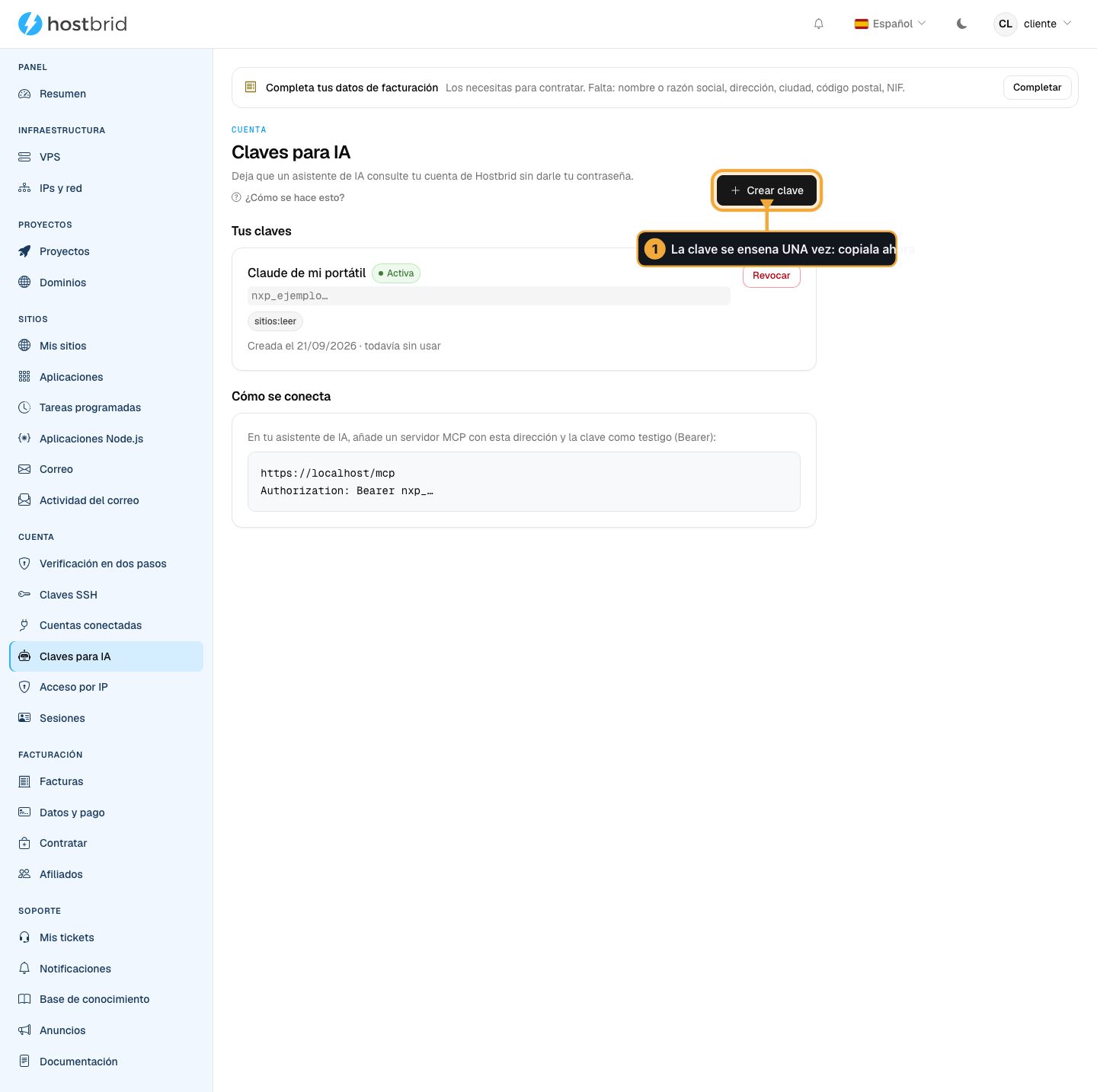
In your account, go to AI keys and click Create key.
Give it a name that tells you what it is for —“Claude on my laptop”— and tick what you want it to be able to see. Tick only what you need: you can always create another key later on.
Important
The key is shown only once. Copy it right then and store it wherever you keep your passwords. We do not show it again: all that is left in our database is a summary that will not get anyone in.
If you lose it, revoke it and create another one. No harm done.
Step 2 — Tell your AI about it
In your AI’s settings, add an MCP server with these two details:
Dirección:  https://my.hostbrid.com/mcp
Cabecera:   X-API-Key: (la llave que acabas de copiar)
Save and restart the application if it asks you to.
Step 3 — Try it out
Ask it something it could only know by looking at your account:
“How many sites do I have on Hostbrid, and which one runs the oldest PHP version?”
“When does my domain expire?”
“How much is left on my plan?”
How you know it worked: it answers with your data, not with generalities. If it tells you it cannot get in, check that the key is complete and that you ticked the permission it needs —the error message says which one.
What it can and cannot do
It can look at: your sites, your domains, your databases —the name and the user, never the password—, your plan and your machines.
It only sees what is yours. A key from your account cannot reach anyone else’s, not even if it is asked for by identifier.
Warning
Whatever you ask your AI, your AI reads. If you ask it about your domains, those domains go through that AI’s provider. It is the same as when you paste anything into the chat, but it is worth keeping in mind.
Revoke a key
On that same screen, Revoke. It stops working immediately and cannot be recovered: if you need one again, you create a new one.
Revoke without a second thought if you change computers, if you stop using that AI, or if you have any doubt about where the key ended up.
Frequent problems
- My assistant says it is not authorized
The key goes as a witness (Bearer) in the Authorization header, and starts with
nxp_. If you copied it halfway or revoked it, create another one: the key is only shown once and we do not save it.- I have lost the key
It cannot be recovered, it is the only time it is taught. Revoke it and create another; revoking it stops working in the act.
- I ask the AI to turn on a server and it says it can’t
Today, the keys you can create only consult: none allow you to create, change, delete or pay anything. If you need me to act in addition, ask for it by ticket saying exactly what you need me to be able to do.
- It won’t let me create more keys
The limit is ten live keys. It is not a technical limitation: ten are already more than anyone reviews. Revoke the ones you do not use.
- Your user is not yet associated with any active hosting account
A key created now could not consult anything. Write to us and we will activate it before creating it.
- The AI does not see one of my servers
If your user is on that server as a user or as read-only, it does not appear here. Have them make you an administrator, or consult it from the panel.
- Can AI see my passwords?
No. From the databases it returns the name and the user, never the password. And it only sees yours: a key from your account is not enough for anyone else’s.
- I want to use the same password on two computers
Better one per site, with its name. So, if you have to revoke one, you don’t leave the other computer lying around.