Note
The screenshots on this page show the panel in Spanish, because they are captured once, from the Spanish interface. Your panel shows the same screens with the English labels used in this text — the buttons are in the same place.
View and edit your PHP settings
What you get: a higher memory limit, room for bigger files, or more time for a slow page, without opening a ticket.
They are the other half of running your own PHP: you pick the version in Change your PHP version, and you set the limits here. Both are on the same screen, a bit further down.
The four settings you can change
Setting |
What it does |
|---|---|
Memory per process Example: |
How much memory your website can use at once. Raise it if you see “allowed memory size exhausted”. |
Maximum upload size Example: |
The largest file that can be uploaded. This is the one to change when you can’t upload a big video or a large PDF. |
Maximum form size Example: |
It must be equal to or larger than the upload size. |
Maximum execution time Example: |
Seconds before a slow page is cut off. Raise it for large imports and backups. |
Warning
If you set an upload size larger than the form size, large uploads fail without saying why. That is exactly why the panel won’t let you save it. Always change both at once, and keep the form size equal or higher.
Steps
In the Hosting Panel, on your site’s row, click PHP.
Scroll down to PHP settings.
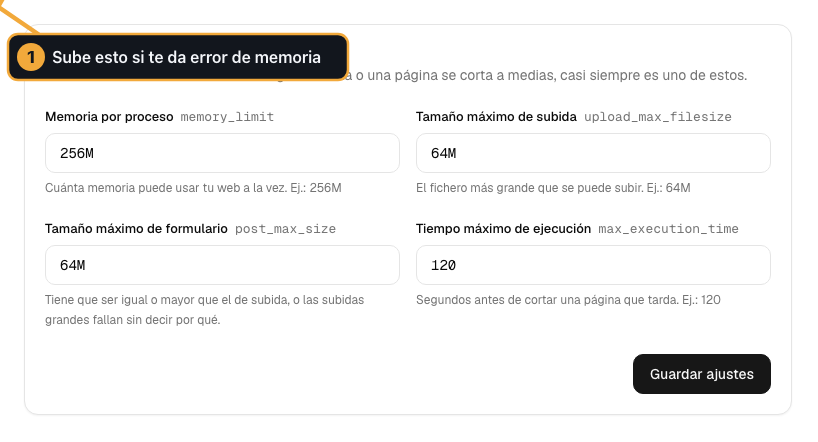
The fields come filled in with what you have now. An empty field means the server default is used.
Change whatever you need. Use the format shown in the examples:
256M,2G, or a number of seconds with no unit.Click Save settings.
How you know it worked
You get the message “PHP settings saved. They’re already applied to your website.” and the screen reloads with the new values.
Nothing needs restarting: they are already in effect.
If something is written wrong, the panel tells you field by field, for example ““250MB” is not valid. Enter something like 256M”, and saves nothing. What you typed stays on screen, so you don’t have to type it again.
Other settings
Below the four fields there is an Other settings box for writing directives that are not in the list, one per line and in the form ajuste = valor. Lines starting with ; or # are ignored, so you can leave yourself comments.
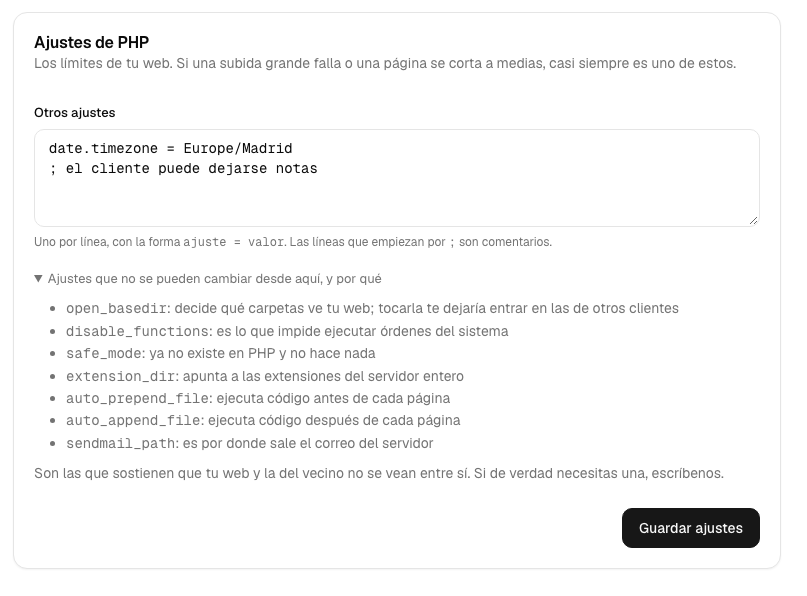
If a line is not in that form, the panel tells you which one it is and saves nothing.
What you can’t change, and why
Below you have the full list with the reason for each one. It is not arbitrary: these are the directives that hold up the isolation between customers on a shared server, and touching them would take you out of your own folder.
Directive |
Why not |
|---|---|
|
It decides which folders your website sees; changing it would let you into other customers’ folders. |
|
It is what prevents running system commands. |
|
It is how the server’s email goes out. |
|
It points to the extensions of the whole server. |
|
They run code before and after every page. |
|
It no longer exists in PHP and does nothing. |
If you try to put them in Other settings, the panel explains why and saves nothing. If you really need one of them, open a ticket saying what for: there are cases where it can be done another way.
Common problems
- I raised the memory limit and it still fails
Check whether the application has a limit of its own. WordPress, for example, has one in
wp-config.phpthat overrides the server’s.- It still won’t let me upload a large file
Raise both sizes, the upload one and the form one. And check whether your application also has a limit of its own.
- “They could not be saved”
The message carries the reason after it. Copy it as is into a ticket.